SUBJECT:
SERVICE ACTION: UVO SOFTWARE UPGRADE (SA137A)
This bulletin provides the procedure for upgrading the 2013MY Rio UVO system. Kia is requesting the completion of this Service Action on all affected 2013MY Rio vehicles prior to delivery. Before conducting the procedure, verify that the vehicle is included in the list of the affected VINs.
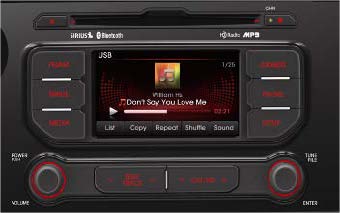
UVO Upgrade Procedure:
CAUTION
Delete all paired phones from the UVO system; delete UVO from all phones. If you do not delete phones, the phone(s) will still show and act as paired, but performance or functionality issues may occur. Anytime a software update is performed to either a paired phone or the UVO system, the pairing should be deleted from both phone and UVO system and then pair again after update.
For UVO software update use only USB flash drives that do not contain any files or folders.
USB flash drive specs: FAT32, USB 2.0 and at least 1GB memory.
Battery should be fully charged during update, otherwise there could be data loss or damage to UVO system.
Updating UVO system may take 2 to 10 minutes.
(Time may vary depending on previous UVO software version.)
- If viewing this TSB electronically, click the link below.
Otherwise, log on to KGIS/KiaTechInfo.com and click on “Diagnostic Tools,” then click “Software Downloads” from the navigation menu.
- Click on “2013 UVO System Update Download” link.
- Click “Save File.”
*NOTICE
The UVO file download screens are for demonstrative purposes only. Actual screen content may differ.
- Click “Save”.
- Click “Open Folder.”
- Click on update file to open it. The file name is “UVO_9013”.
- Click “Run.”
- Insert a flash drive into USB port on your computer; click Unzip and the files will be downloaded to the flash drive.
- Unzip the downloaded file directly to the root directory of the USB being used for the update.
*NOTICE
Unzipping the attached or downloaded file and copying the folder to the USB or unzipping to any folder other than the root folder will result in the upload not executing.
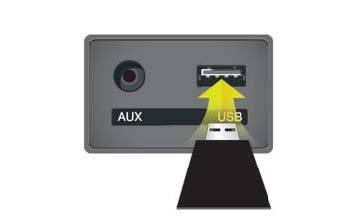
Power ON UVO system.
Connect USB flash drive to UVO system’s USB socket.
The system will display “Reading Media” on the screen after USB is inserted. This is normal, since the unit is searching for music files. Then the system will display a “No File Available” pop-up after system music search is complete, wait until new screen appears and continue with the upgrade.
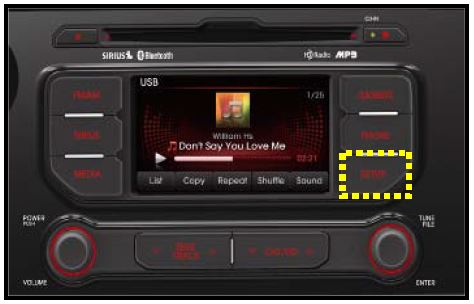
- Press “SETUP” button on the head unit.
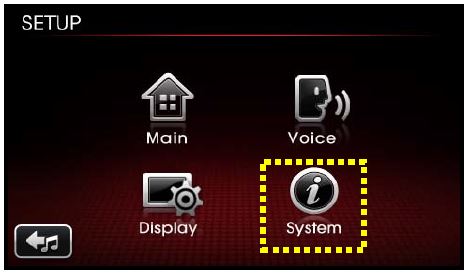
- Touch “System” icon on the screen.
- Touch “System Information” button on the screen.
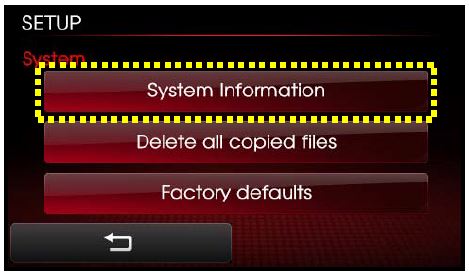
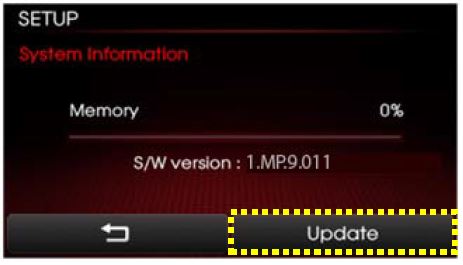
13a. Verify the current S/W version (1.MP.9.011) as shown in the image.
13b. Touch “Update” button on screen.
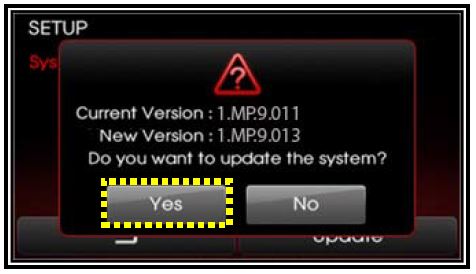
- Check that “New Version” is correct for this Service Action (New version is 1.MP.9.013); if version is correct, then touch “Yes” button on screen.
- The UVO system will automatically reboot and the update will proceed.
*NOTICE
When rebooting, screen will go dark for approximately 20 to 40 seconds, this is normal. System will reboot 2 times to perform the update.
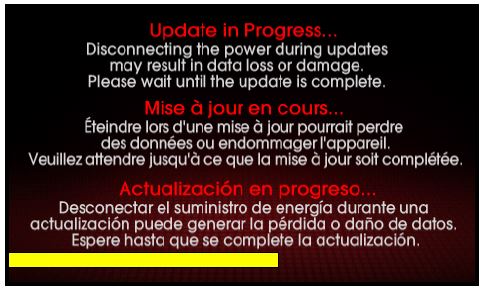
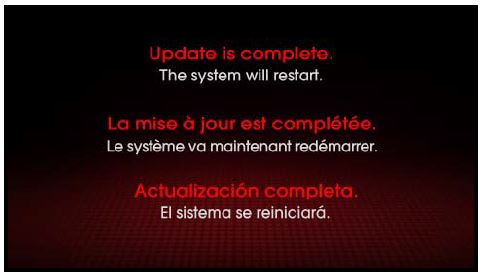
- After the update is complete, the display shown on the right will appear for a few moments; then the UVO system will reboot again.
Repeat steps 2~4 and verify whether UVO system version has been updated to version 1.MP.9.013.
- Verify proper system function by obtaining the customer’s phone(s) and pairing it(them) with the system.
*NOTICE
If you do not delete phones, the phone(s) will still show and act as paired, but there may be performance or functionality issues. Anytime a software update is performed to either a paired phone or the UVO system, the pairing should be deleted from both phone and UVO system and then re-paired after update.
AFFECTED VEHICLE PRODUCTION RANGE:
| Model | Production Date Range |
|---|---|
| Rio (UB) | March 12th to October 22nd, 2012 |
No products found.

- Bright, high-resolution 5” glass capacitive touchscreen display lets you easily view your route
- Get more situational awareness with alerts for school zones, speed changes, sharp curves and more
- View food, fuel and rest areas along your active route, and see upcoming cities and milestones
- View Tripadvisor traveler ratings for top-rated restaurants, hotels and attractions to help you make the most of road trips
- Directory of U.S. national parks simplifies navigation to entrances, visitor centers and landmarks within the parks

- Vehicle dash mount for use on any stable surface
- Securely holds your GPS in vehicle.Keep your device in easy sight with this portable friction mount, and then remove it from your vehicle when you arrive at your destination
- Does not slide or detach while vehicle is in motion
- Adjustable to position GPS in a variety of angles
- Ships in Certified Frustration-Free Packaging

This product presentation was made with AAWP plugin.