SUBJECT:
SERVICE ACTION: AVN SOFTWARE UPGRADE (SA133)
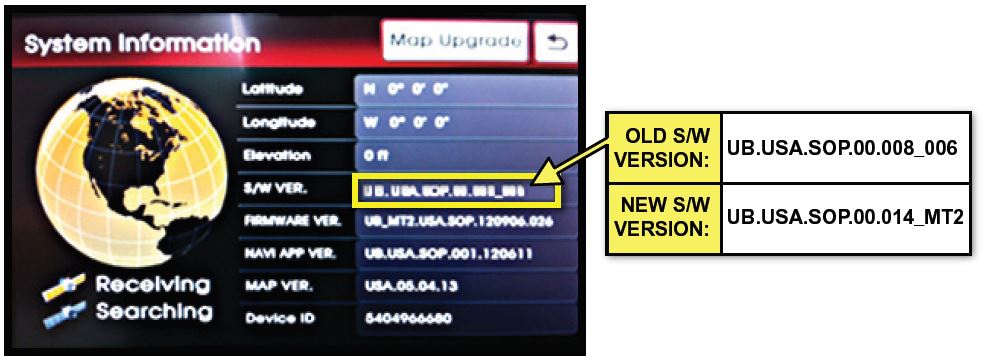
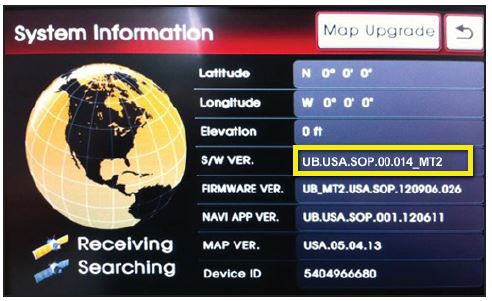
This bulletin describes the procedure to update the navigation system software and modify the phone pairing logic in 2013MY Rio vehicles, with navigation system (AVN) and manual transmission, produced From June 12, 2012 to Aug. 29, 2012. Verify navigation system software version by referring to the table below; then follow the procedure outlined in this TSB to update the navigation system.
Kia is requesting the completion of this Service Action on all affected vehicles in dealer stock prior to delivery. Before conducting procedure, verify that the vehicle is included in the list of the affected VINs.
NOTICE
This is a software upgrade for the navigation system and NOT a map upgrade.
Upgrade Procedure:
- If viewing this TSB electronically, click the link below:
https://static.oemdtc.com/Uploads/UBA_120906_MICOM.exe otherwise, log on to KiaTechInfo.com and click on “Diagnostic Tools,” then click “Software Downloads” from the Navigation menu.
- Click on “2013 Rio AVN System update Download”
- Click “Save.”
- Click “Save.”
- Click “Open Folder”.
- Click on update file to open it. The file name is UBA_120906_MICOM.
- Click “Run”.
- Insert a flash drive into USB port on your computer; click “Unzip” and the files will be downloaded onto the USB flash drive.
*NOTICE
Before loading new software on the USB flash drive, it MUST BE properly formatted and MUST NOT have any other files on it.
- Turn the ignition key to “ACC” or “ON” position.
CAUTION
Make sure the battery is fully charged before beginning the update, otherwise, there could be data loss or damage to system.
Turn on the Audio system by pushing the “POWER” button.
*NOTICE
While conducting the software upgrade procedure, make sure to keep the ignition key in the “ACC” or “ON” position. Do NOT turn the ignition key to any other position.
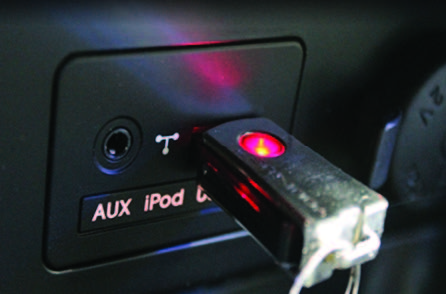
- Insert the upgrade USB flash drive into the USB port.
*NOTICE
Do not load any other files onto the USB flash drive as this could compromise the upgrade software.
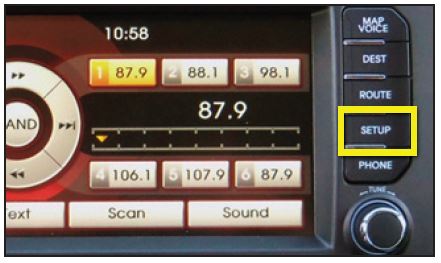
- Push the “SETUP” button, then press “Agree” on the screen.
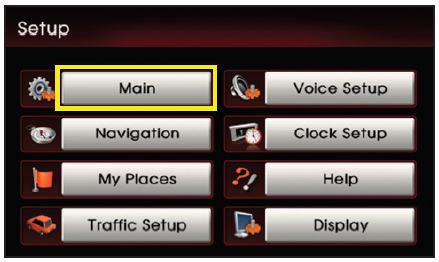
- Push “Main” button on the screen.
- Push “System Info” button on the screen.
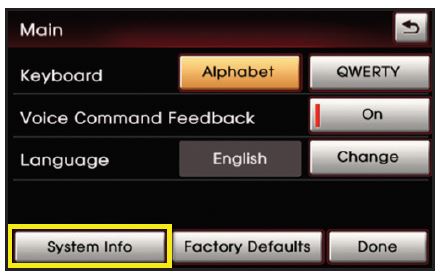
- Push “Map Upgrade” button on the screen.
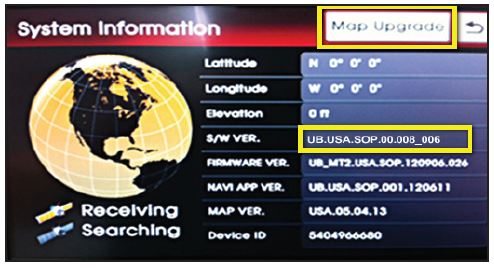
*NOTICE
Verify current software version is “UB.USA.SOP.00.008_006”
*NOTICE
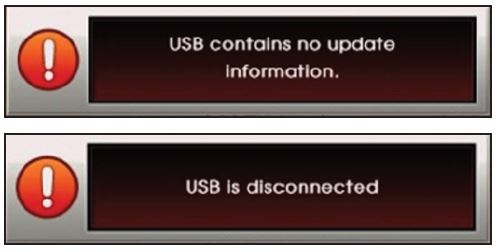
If the USB flash drive has no upgrade information, or has not connected properly, an error popup message will be displayed. Reload the correct files onto the USB flash drive and retry the procedure.
- Start the upgrade by pushing the “Yes” button on the screen.
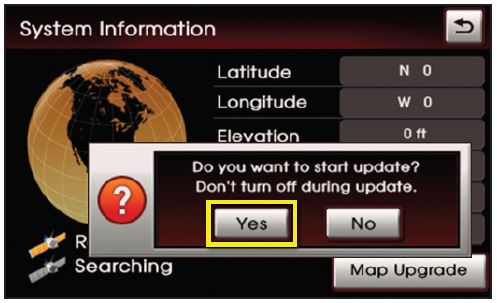
*NOTICE
The upgrade may take a few seconds to start.
- The upgrade will take approximately 5-10 minutes to complete. System will restart after the upgrade has completed.
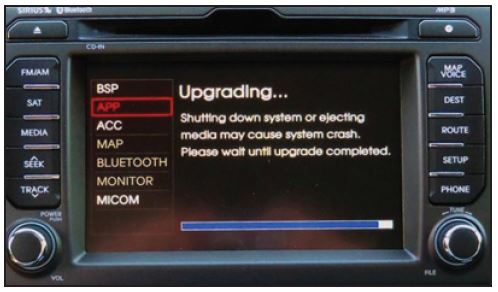
*NOTICE
DO NOT unplug the USB flash drive or turn the system off while the upgrade procedure is in progress.
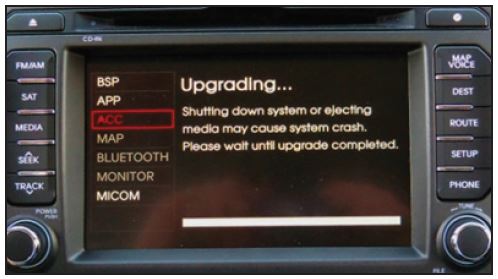
- When the upgrade is complete, the AVN system will restart automatically. remove the USB flash drive at this point.
- Push the “POWER” button to turn on the head unit.
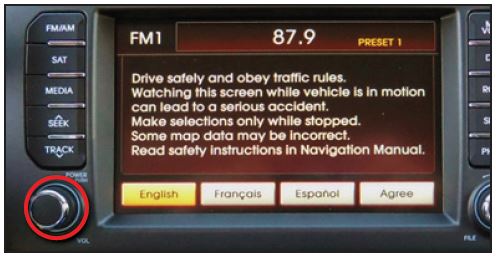
- Push the “SETUP” button, then press the “Agree” button on the screen.
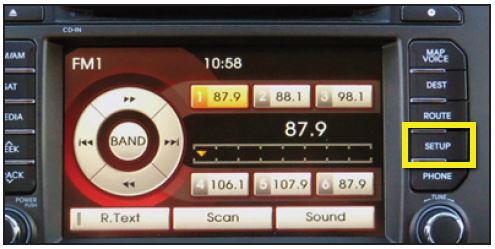
- Push the “Main” button on the screen.
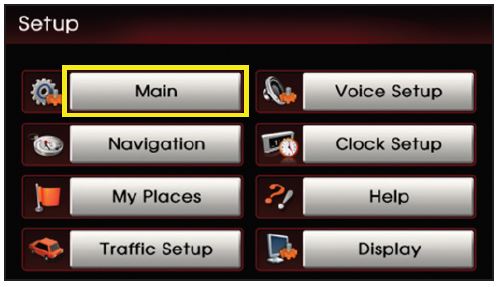
- Push “System Info” button on the screen.
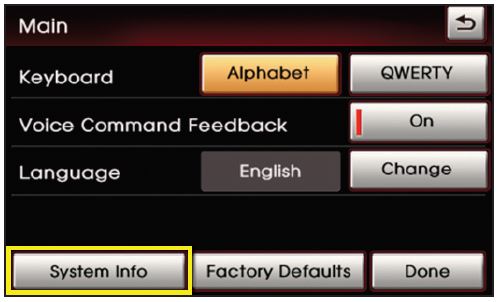
- Verify new software version is USA. SOP.00.014_MT2.
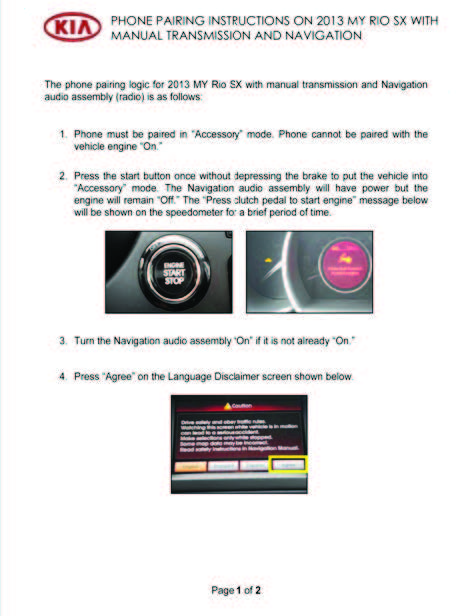
- Check the interior of the vehicle (i.e. glove compartment, center console, etc.) for phone pairing instructions, as shown below. Any instructions found should be removed from the vehicle and discarded as this update will modify the phone pairing logic to match the information in the owner’s manual.
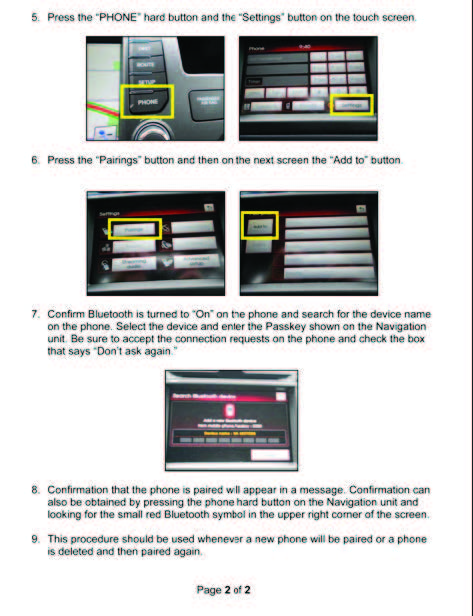
AFFECTED VEHICLE PRODUCTION RANGE:
| Model | Production Date Range |
|---|---|
| 2013 Rio (UB) | From June 12, 2012 to Aug. 29, 2012 |
No products found.
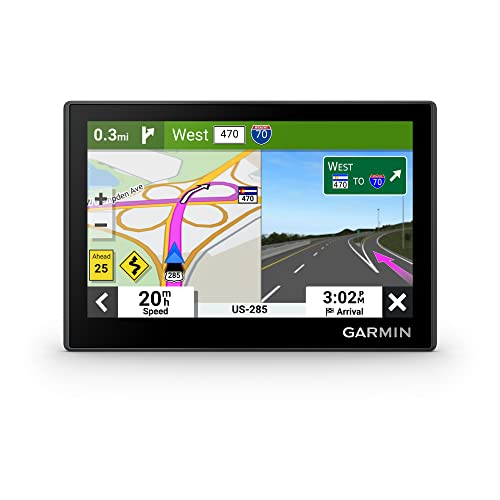
- Bright, high-resolution 5” glass capacitive touchscreen display lets you easily view your route
- Get more situational awareness with alerts for school zones, speed changes, sharp curves and more
- View food, fuel and rest areas along your active route, and see upcoming cities and milestones
- View Tripadvisor traveler ratings for top-rated restaurants, hotels and attractions to help you make the most of road trips
- Directory of U.S. national parks simplifies navigation to entrances, visitor centers and landmarks within the parks


- Vehicle dash mount for use on any stable surface
- Securely holds your GPS in vehicle.Keep your device in easy sight with this portable friction mount, and then remove it from your vehicle when you arrive at your destination
- Does not slide or detach while vehicle is in motion
- Adjustable to position GPS in a variety of angles
- Ships in Certified Frustration-Free Packaging
This product presentation was made with AAWP plugin.