SUBJECT:
AVN 4.0 UVO eServices DEALER ENGINEERING MODE
When troubleshooting an AVN 4.0 head-unit, follow the procedure outlined below to access the Dealer Engineering mode and perform various eServices related maintenance functions.
- Make sure the UVO eServices app is installed on the smartphone to be used.
- Bluetooth pair and connect the smartphone via USB cable to vehicle.
- Log in to the UVO eServices app using the following Universal Identification (UID) login credentials:
- User ID: [email protected]
- Password: 1234
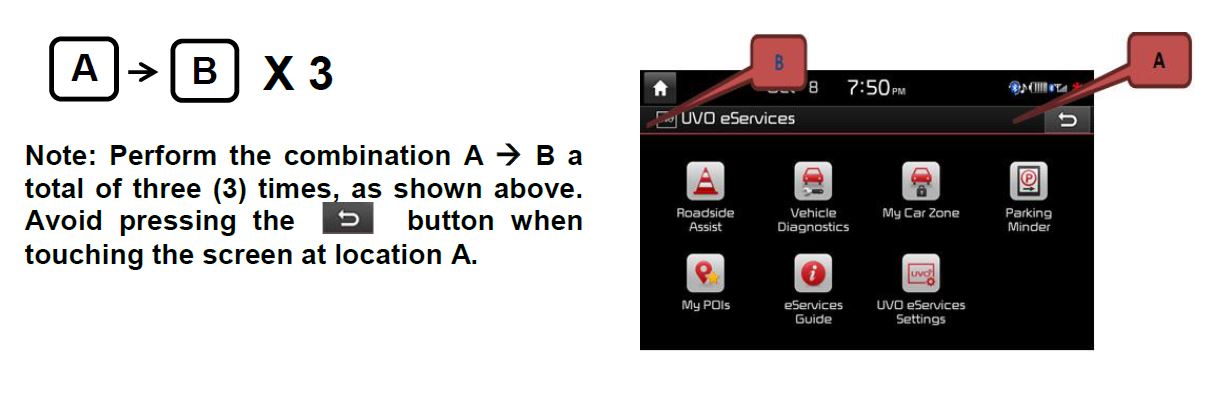
- To access the Dealer Engineering Mode, press the UVO hard key. Then, use a finger to touch a specific area of the head unit screen (A -> B), as shown in the image below.
- After performing the A -> B procedure correctly, the Dealer Engineering screen will be displayed on the head unit. Press the eServices Check button to test system operation.
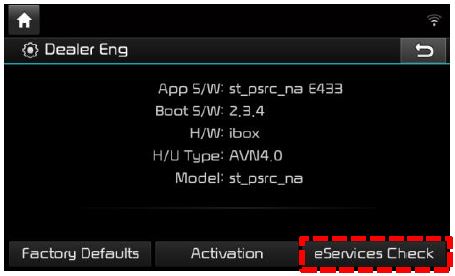
- The system will display the status of various subsystems. If all subsystems are working correctly, the following message will be displayed:
“TMU, OK!” – “BT Connection, OK!” – “USB Connection, OK!” – “eServices Check, OK!”
Note: The message above indicates all subsystems are working correctly. No further action is required.
- If any of the system checks fail, refer to the Troubleshooting Matrix below or to the applicable workshop manual on KGIS.
Error Codes Troubleshooting Matrix for AVN 4.0 Head Units
| CHECK | CODE | MESSAGE | TROUBLESHOOTING |
|---|---|---|---|
| TMU | T000 | Checking TMU | N/A |
| T001 | TMU submicom is not connected | Reset AVN or update to latest version | |
| T002 | Unknown VIN | IGN on (at least once) | |
| T999 | TMU OK! | N/A | |
| BT | B000 | Checking BT Connectivity | N/A |
| B001 | BT Initializing | Try again in a few minutes | |
| B002 | No BT Phone connected | BT phone connection needed | |
| B003 | Connecting to BT Profiles | N/A | |
| B999 | BT Connection OK! | N/A | |
| USB | U000 | Checking USB Connectivity | N/A |
| U001 | USB is not connected | Connect with smart phone using USB cable | |
| U002 | Not supported device | Smart phone needed(ex. not USB stick) | |
| U003 | No response from Phone | Reconnect USB cable | |
| U004 | Phone is not ready | Install UVO app into the phone | |
| U999 | USB Connection OK! | N/A | |
| TMS | C000 | Checking TMS data transfer | N/A |
| C001 | USB unlink | Check USB connection | |
| C002 | No Response from Phone | Reconnect USB cable | |
| C003 | Response Error | Check phone network status | |
| C999 | eServices Check OK! | N/A |
No products found.
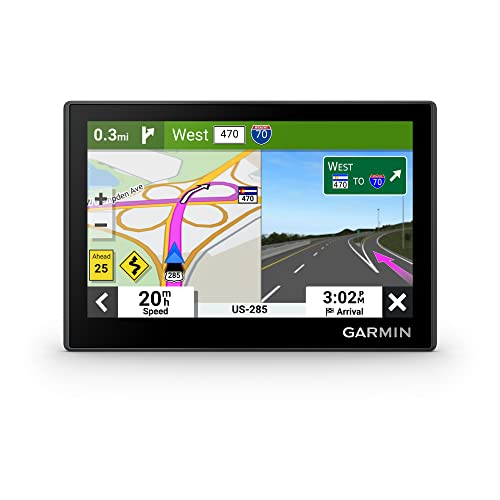
Garmin Drive™ 53 GPS Navigator
- Bright, high-resolution 5” glass capacitive touchscreen display lets you easily view your route
- Get more situational awareness with alerts for school zones, speed changes, sharp curves and more
- View food, fuel and rest areas along your active route, and see upcoming cities and milestones
- View Tripadvisor traveler ratings for top-rated restaurants, hotels and attractions to help you make the most of road trips
- Directory of U.S. national parks simplifies navigation to entrances, visitor centers and landmarks within the parks

Garmin 010-10908-02 Portable Friction Mount - Frustration Free Packaging
- Vehicle dash mount for use on any stable surface
- Securely holds your GPS in vehicle.Keep your device in easy sight with this portable friction mount, and then remove it from your vehicle when you arrive at your destination
- Does not slide or detach while vehicle is in motion
- Adjustable to position GPS in a variety of angles
- Ships in Certified Frustration-Free Packaging

This product presentation was made with AAWP plugin.